Portal WebRTC Integration
Portal WebRTC Integration provides the peer-to-peer communication layer used for secure remote access, live media, file transfer, access sharing, connection history, and portal event delivery.
Share remote access through P2P communication
Sharing access to a video management system is essential when a home user grants access to family members, or an organization assigns monitoring and configuration responsibilities to different operators. Banalytics uses peer-to-peer communication so devices and users can exchange data securely and efficiently without routing all operational traffic through a centralized video server.
You can grant access to individual users or groups of users, each with permissions tailored to their role. Users only see the components and operations they have been granted access to.
Open P2P Communication
Go to P2P Communication under Server Configuration and use Account Sharing to add a user email address.
Grant component access
Select which components the user can access, then configure permissions such as read, update, start/stop, action execution, audio stream, or video stream.
Review connection history
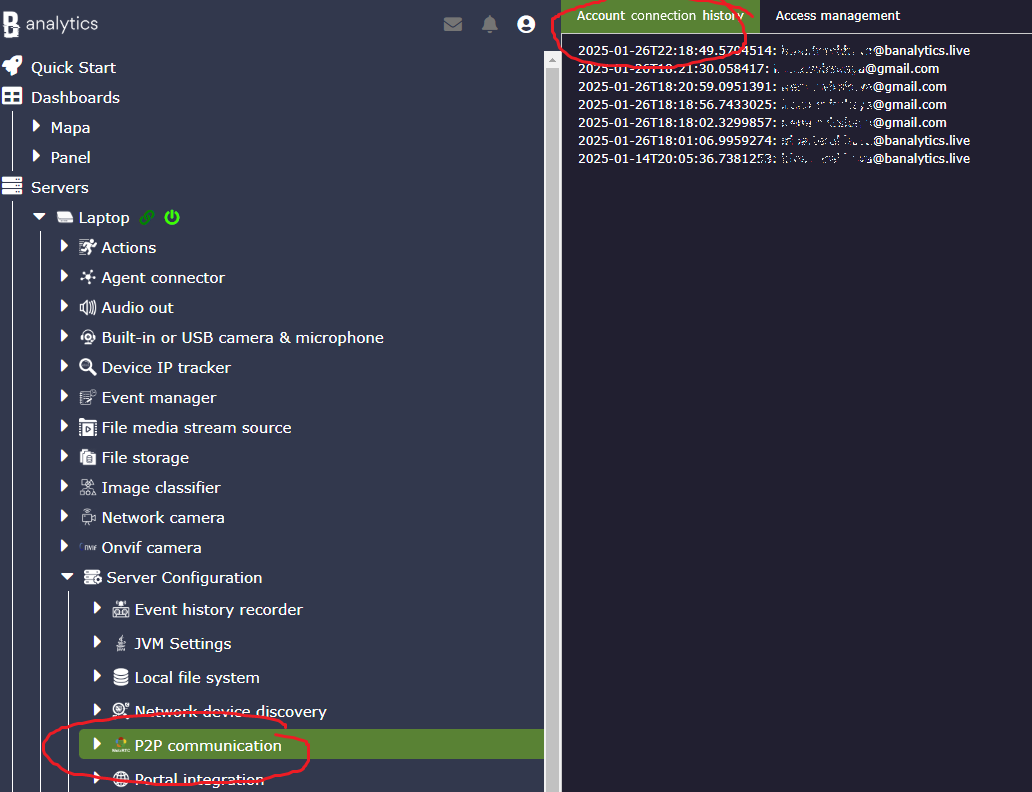
Use Account Connection History to check which accounts connected to your server and when.
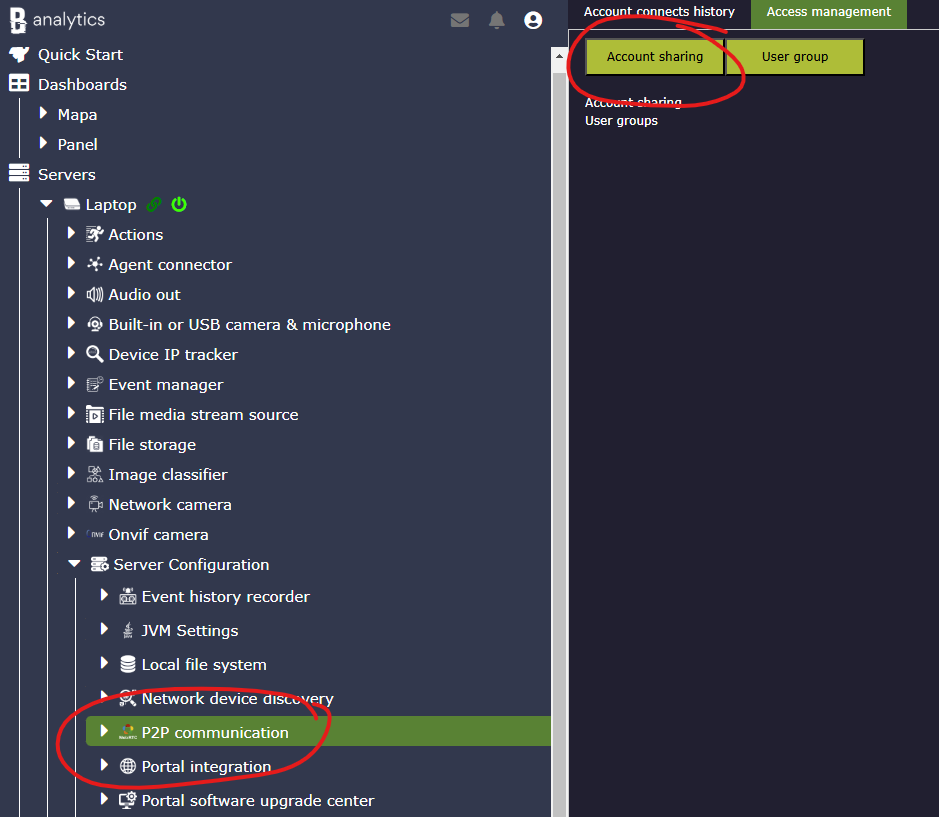
Configuration parameters
These settings control browser-to-agent WebRTC connectivity, token lifetime, media delivery, bandwidth budgeting, and auditing.
| Parameter | Required | Description | Default |
|---|---|---|---|
Datasource | Yes | Database used for access token persistence, expired token cleanup, and connection history. Use the local data source for simple installations or an external database when history and tokens must survive local storage maintenance. | None |
Security token TTL (min) | Yes | Access token lifetime in minutes. Short values are better for temporary support access or public links. Longer values reduce login frequency for trusted operators but increase the reuse window if a token is leaked. | 7 days |
Client timeout (sec) | Yes | Inactive client timeout in seconds. Lower values free resources faster after browser tabs close or mobile clients go offline. Higher values are more tolerant of unstable networks. Range: 1-300. | 120 |
Data channel buffer max (kB) | Yes | Maximum amount of data a single WebRTC data channel may keep in flight. Lower values reduce memory pressure on slow links; higher values can improve throughput for fast networks and larger responses. Range: 100-10000. | None |
Media packet lifetime (ms) | Yes | Maximum lifetime for media packets. Smaller values favor low-latency live preview by dropping stale media quickly. Larger values tolerate jitter better but can increase perceived latency. Range: 50-10000. | 500 |
Max bandwidth (kB/s) | Yes | Global outbound WebRTC bandwidth budget for environment messages, media delivery, and file transmission. Set it below the real available uplink and leave room for camera input streams, database traffic, and other services. | 500000 |
Reserved for file transmission (%) | Yes | Percent of the WebRTC bandwidth budget reserved for file downloads. Lower values protect live preview and interactive UI actions; higher values speed up downloads but can make remote control and video less responsive. Range: 5-95. | 30 |
Max bitrate | Yes | Maximum per-stream H.264 bitrate for live media sent through WebRTC. Increase for clearer video and high-detail scenes; decrease when uplink bandwidth, CPU, or browser playback stability matters more. Range: 5000-20000000. | 600000 |
GOP | Yes | Group of pictures size for re-encoded streams. Smaller values create more keyframes and faster recovery after packet loss or reconnects; larger values reduce bitrate overhead but recover more slowly. Range: 1-1000. | 100 |
Max. live streaming width | Yes | Maximum target width for live preview streams. To reliably reduce stream cost, also choose an appropriate camera or media source profile upstream. Range: 160-5000. | 800 |
User requests audit | Yes | Records incoming remote requests as user session audit events. Enable when remote operations must be auditable. | No |
User responses audit | Yes | Records outgoing WebRTC responses. Enable only when required for compliance or troubleshooting because responses can be large and may contain sensitive operational data. | No |
Portal signaling establishes direct remote channels
Portal Integration handles portal signaling over WebSocket. Portal WebRTC Integration then creates and manages the WebRTC connection, data channels, media channels, file transfer channel, access sharing, connection history, and event delivery to connected users.
The WebRTC integration uses the configured Datasource to persist access tokens, delete expired tokens, and store connection history. For a single-agent installation the local data source is usually enough. Use an external database when token and history persistence must survive local storage cleanup or be managed together with other system data.
Remote channels
Data, media, and file transfer traffic are controlled by WebRTC budgets, channel buffers, packet lifetimes, and media bitrate settings.
Access sharing
Account and group permissions define what a connected portal user can see or control inside the agent environment.
Audit trail
Request and response auditing can record remote operations, but response auditing should be enabled only when its data volume and privacy impact are acceptable.
Grant users access to specific components
Granting access to a single user
Enter the user's email address in Account Sharing. The email can belong to an existing registered user or a new user.
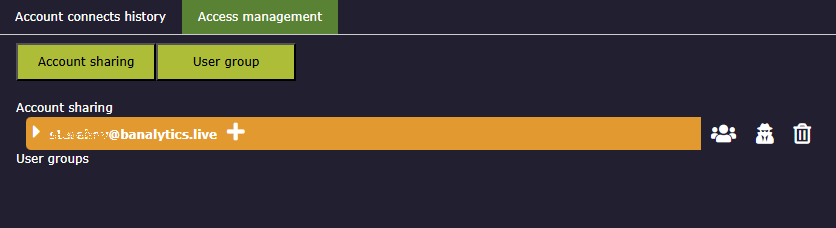
After the email appears under Account Sharing, you can add the user to a group, resend the connection password, or delete the sharing entry.
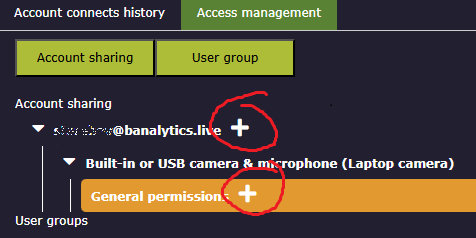
Action execution
Allows the user to execute configured actions, for example playing a sound or running a manual command exposed by a component.
Audio and video stream
Allows realtime audio or video streams from cameras and other media sources when the component supports streaming.
Read and update
Read allows viewing component configuration. Update allows editing it; grant both when a user must change configuration.
Start/Stop
Allows the user to start or stop the selected component. Grant this only to operators who are allowed to affect runtime state.
Granting access to a group of users
Use User Group to create a role-like group, such as Visitor or Admin. Grant component access to the group, then add users to it. New users added to the group inherit the same permissions.
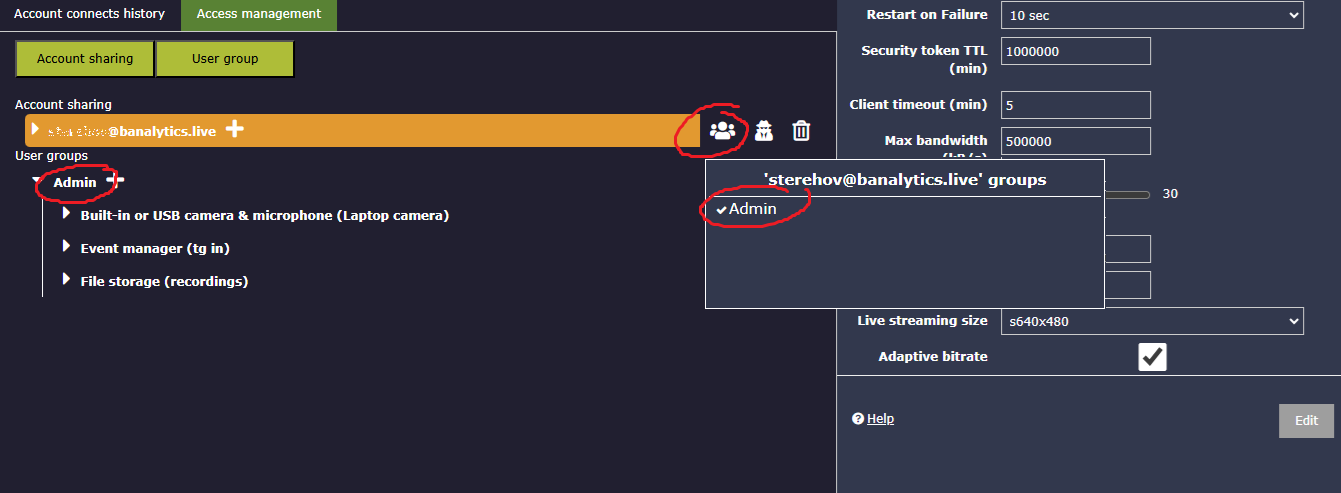
View account connection history
Use the Account Connection History tab under P2P Communication to check who connected to your server and when.
Tune WebRTC for remote access patterns
Default remote administration
Use the local datasource, keep token lifetime at 7 days, client timeout at 120 seconds, conservative channel buffers, default bandwidth budget, 30% reserved for file transfers, 600000 max bitrate, GOP 100, and enable audit only when needed.
Temporary support access
Reduce Security token TTL (min) to 15-60 minutes, keep Client timeout (sec) short, keep bandwidth conservative, and enable request auditing to see which remote operations were performed.
Low-bandwidth or mobile uplink
Set Max bandwidth (kB/s) to the safe part of the uplink, reduce Max bitrate, reserve only 10-20% for file transmission, use a modest data channel buffer, and prefer smaller camera preview streams.
Live monitoring over a good network
Increase Max bandwidth (kB/s) and Max bitrate, keep the file transmission reservation moderate, and lower GOP when faster recovery from packet loss matters.
File-heavy maintenance
Raise Reserved for file transmission (%) only for maintenance windows. After large downloads are finished, return it to a lower value so UI actions and live media remain responsive.
Security-sensitive deployment
Use a short token lifetime, keep User requests audit enabled, enable User responses audit only after checking data volume and privacy impact, and regularly review sharing permissions.
Operational notes
Keep bandwidth below real uplink
Set the WebRTC budget below the actual available uplink so camera input streams, database traffic, portal signaling, and other services still have room.
Balance files and live preview
File transmission reservation protects downloads, but too much reservation can make remote control and live media feel sluggish.
Audit selectively
Request auditing is useful for security review. Response auditing can be large and sensitive, so enable it only for compliance or short troubleshooting windows.