Play Audio
Play Audio runs a configured sound through a selected audio output device. Use it for alarms, voice announcements, scheduled reminders, and operator-triggered acoustic feedback.
Add a sound action for manual or automated alerts
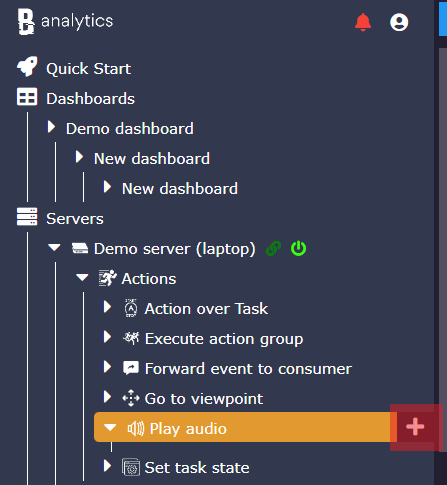
When an event is detected, Event Manager can trigger an alarm. Operators can also start the action manually when they see unauthorized activity in a venue. A siren can be replaced with a voice recording for understandable instructions, scheduled commands, or low-priority announcements.
Click the plus button next to the Play audio sub-menu under Actions. This is useful when you want to test the action manually before adding it to an Event Manager rule.
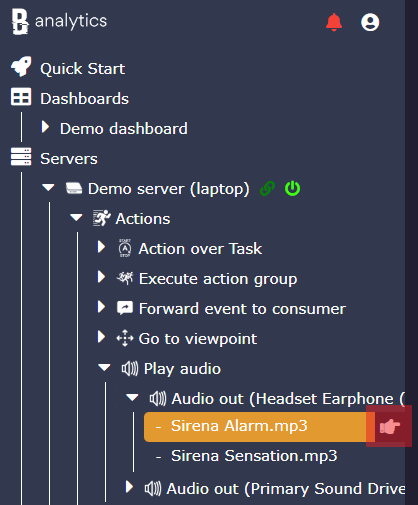
Select the output device
Choose the Playing device that should play the sound. Usually this is a local audio output configured for the server or edge device.
Select the audio file
Choose File to play from the configured file storage provider. Use short, tested files for alarms and voice announcements.
Test manually
Click the manual execution icon next to the action to confirm that the selected file, output device, operating system volume, and service permissions work as expected.
Configuration parameters
| Parameter | Required | Description | Default |
|---|---|---|---|
Restart on failure | Yes | Restart mode after an error:
| 10 sec |
Playing device | Yes | Audio output device that should play the selected sound. Configure and test the output device before using it in production rules. | None |
File storage provider | Optional | File storage provider where the audio file is located. If hidden or left unchanged, the action uses the server-local file system. | Server-local file system |
File to play | Yes | Audio file path resolved on the agent machine. Supported formats depend on the Java audio subsystem and installed codecs; WAV is the safest choice for reliable alarms. | None |
Playing frequency limitation | Yes | Cooldown between two playback attempts. Even if the action is triggered repeatedly, the system will not repeat audio earlier than this interval. | 5 sec |
Playback is resolved on the agent machine
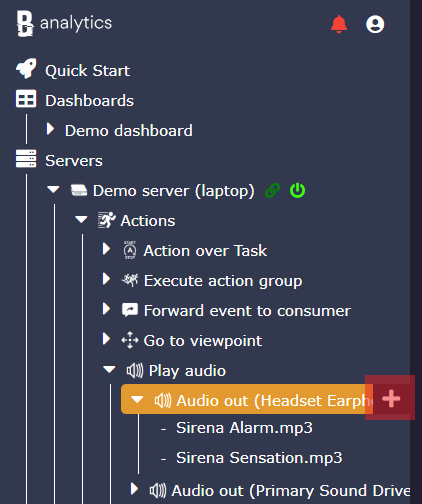
The action plays a configured audio file through the selected Playing device. It can be triggered manually, by Event Manager rules, or as part of an action group. The audio file is resolved through the configured file storage provider on the agent machine, not through the browser path.
You can configure more than one sound for the same output device. Different actions can point to different files, which lets Event Manager play separate messages for intrusion, detection, system failure, doorbell, or status events.
Audio output
The selected output device controls where the sound is played: local speaker, sound card, HDMI output, or another configured device.
Audio file
The file must exist on the agent side and be readable by the service user. Keep alarm files short and easy to recognize.
Cooldown
The frequency limit prevents repeated triggers from constantly restarting the same sound during noisy event bursts.
Choose audio behavior for the event scenario
Simple local alarm
Select the local audio output device, choose a short WAV file, and keep Playing frequency limitation at 5 seconds or higher. This is useful for motion alarms, door events, equipment warnings, and manual operator actions.
Different sounds for different rules
Create several Play Audio actions that point to the same audio output device but use different files. Event Manager can then play different messages for intrusion, detection, system failure, doorbell, or status events.
Voice announcement
Use short pre-recorded voice files instead of a generic siren when the user needs understandable instructions, for example "camera offline", "door opened", or "please leave the restricted area".
High-frequency detector
Increase Playing frequency limitation to 30 seconds, 1 minute, or more when the source can fire many events in a row, such as motion detection in rain, noisy sound detection, or repeated line-crossing.
Urgent operator alert
Keep the audio short and loud, use a reliable local output device, and test playback from the UI before wiring it to an automation rule. For critical alerts, combine sound with another notification channel.
Quiet notification
Use a softer file and a longer cooldown for routine events such as successful access, scheduled reminders, or low-priority status changes.
Multiple output zones
Create separate audio output devices for different operating system audio devices, then point different Play Audio actions to the appropriate device. One rule can play on a local speaker and another on a different sound card or HDMI output.
File replacement workflow
Keep the same File to play path and replace the audio file on disk when the message should change. Restart the audio output or action if the old clip remains cached.
Operational notes
Keep alert sounds short
The audio output can restart the cached clip from the beginning when the same action fires again after cooldown.
Prefer WAV for reliability
The file picker allows common audio extensions, but actual playback depends on codecs available to the Java audio subsystem and the selected mixer. Use uncompressed WAV when reliability matters.
Use agent-side paths
File to play is resolved on the agent machine through the configured file storage provider. The portal or browser path is not the playback path.
Tune cooldown carefully
If Playing frequency limitation is too low, frequent events can make the same sound restart repeatedly. If it is too high, important repeated alerts may be suppressed.
Test after device changes
Playback errors are handled as action processing errors. Test the selected file, mixer, operating system volume, and service user permissions after installation and after audio device changes.
Check headless Linux audio stack
On headless Linux systems, audio output can depend on ALSA, PulseAudio, or PipeWire availability for the service user.