Banalytics is an automation and monitoring layer that sits on your own hardware. It connects your cameras, sensors, and network devices, processes data locally, and lets you wire everything together with rules, with no cloud subscriptions, no separate apps per device brand, and no fragile glue scripts.
// The six building blocks
Six concepts that cover everything
Every setup in Banalytics, from a single door camera to a full homelab with MQTT automation, is built from the same six entities. Once you understand how they connect, configuring any scenario becomes straightforward.
Server
The PC running Banalytics. Your hardware, your network, your data.
Component
A device connected to the server: camera, sensor, Telegram bot, or storage.
Task
What Banalytics does with the component: capture, detect, record, or listen.
Event
Something that happened: motion detected, signal received, threshold crossed.
Event Manager
Receives events and evaluates automation rules to decide what to do next.
Action
The response: send alert, start recording, publish to MQTT, or trigger a task.
// Step-by-step flow
From install to automation
Follow the flow from installation to a working automated system. Each step introduces one entity and explains its role.
01
🪟
Server
Install Banalytics on a Windows or Linux PC
Download and install Banalytics on a PC in your network: a Raspberry Pi, mini PC, NAS, or home server all work. Once installed, open the console in a browser and add this machine as a Server in your account.
↓ console.banalytics.live
02
🔗
Components
Connect devices on your local network
Add ONVIF cameras, IP cameras, USB cameras, Telegram bots, file storage, or MQTT sources as Components. Each component is a named connection to one physical or logical device.
↓ wired or Wi-Fi - same local network
03
⚙️
Tasks
Define what Banalytics does with each component
A Task tells Banalytics what to do with a component: capture video, detect motion, record footage, listen for MQTT signals, apply a watermark, or classify objects with AI.
↓ tasks process data in real time
04
🔔
Events
Tasks and components generate events
Events are the output of tasks and components. Motion detection can fire a motion event; a component losing connection can fire a health event.
↓ events flow into the event manager
05
🗂️
Event Manager
Evaluate automation rules against incoming events
The Event Manager receives events and evaluates your "when X happens, do Y" rules. Rules can match event type, source component, time of day, or any combination.
↓ matching rule triggers an action
06
📡
Actions
Do something in response
An Action is what Banalytics executes when a rule matches: send a Telegram alert, publish an MQTT message, start a recording task, trigger another camera, write to a file, or call a webhook.
🩺Actions and tasks are the same thing:
A task configured directly on a component is called a Task. The same task executed as a response to an event is called an Action. The mechanism is identical; only the trigger changes.
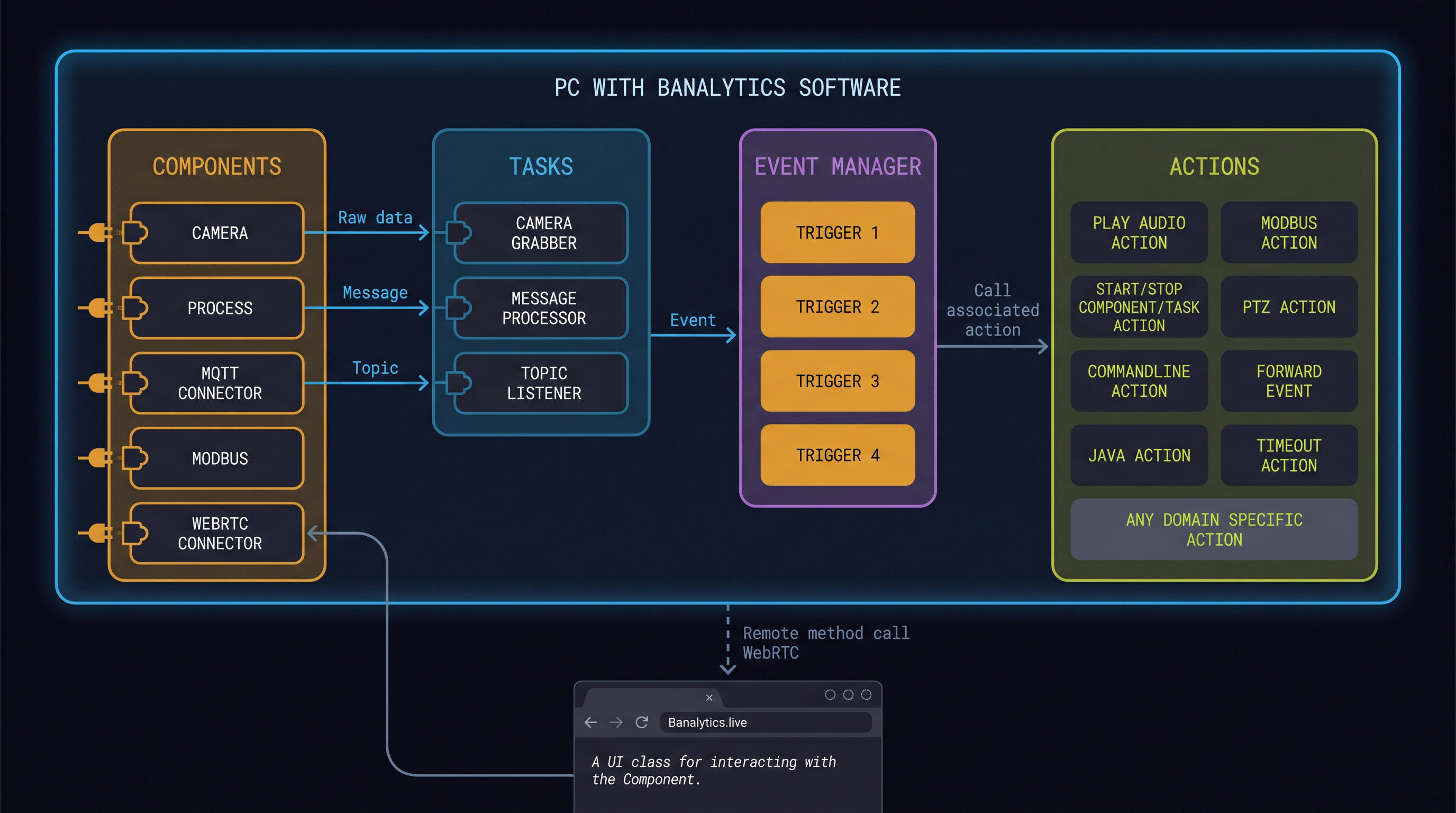
Architecture overview: Components feed raw data into Tasks, Tasks generate Events, the Event Manager evaluates triggers, and matching triggers fire Actions.
// Worked example
Front door motion to Home Assistant in six steps
The scenario: you want your lights to turn on and receive a Telegram video clip when motion is detected at the front door camera, and you want Home Assistant to know about it via MQTT.
🔔
Motion at front door -> lights on + Telegram clip + MQTT to HA
One event, three simultaneous actions, two systems involved
Server→Banalytics is running on your Raspberry Pi 5 or mini PC. It is connected to your Banalytics account and accessible in the browser.
Component→You add the front door ONVIF camera as a component named Front Door. A smart plug controlling the porch light is added as Porch Light.
Task→The Front Door component runs Capture Video, Motion Detection, and Motion Recording.
Event→At 22:14, Motion Detection sees movement and fires a motion.detected event with camera ID, timestamp, confidence, and clip path.
Event Manager→The Event Manager matches the rule: when motion.detected from Front Door after 20:00.
Action 1→Send a Telegram alert with the video clip attached.
Action 2→Run a switch-on task on the Porch Light component for 90 seconds.
Action 3→Publish to MQTT topic banalytics/camera/front-door/motion, so Home Assistant can react.
// MQTT and Home Assistant
Events flow into your MQTT broker
Banalytics publishes camera events, motion detections, and system health to MQTT topics you define. Home Assistant reads them natively as sensors, with no custom component, no fragile webhook, and no polling.
# Home Assistant can trigger light automation, log to logbook, or send a mobile alert.
📡No polling needed:
Because Banalytics publishes to MQTT at the moment an event occurs, Home Assistant receives motion events in real time.
// Scaling beyond one location
Multiple sites, one dashboard
If you monitor more than one location, the model scales naturally. Install Banalytics on a PC at each site, connect it to your account, and every server appears in the same browser dashboard alongside its components, tasks, and live events.
There is no central server to manage. Each site runs independently on its own hardware, storing footage and processing events locally. The browser dashboard is a unified control plane that reaches each server over the internet via WebRTC.
🏗️
Site A
PC running Banalytics. Cameras and sensors connected locally. Footage stays on-site.
🏗️
Site B
Same model. Independent. Different cameras and tasks configured for this location.
🌐
Your browser
One dashboard. All sites, all cameras, all events in one place.
Multi-site setup: each PC runs Banalytics independently. The browser dashboard at console.banalytics.live connects to all servers simultaneously, showing live feeds, event triggers, health charts, and MQTT activity across every location.
// In short
The flow in one sentence
You install Banalytics on your hardware, connect devices as Components, define what each Component does with Tasks, let Tasks and Components generate Events, configure rules in the Event Manager, and Actions execute Tasks on any Component in your system.
.png)