Network Camera
The Network Camera component connects any IP-based camera to Banalytics using a direct URI stream. Use this component for cameras that do not support ONVIF, or when you need to connect through a custom RTSP, HTTP, or HTTPS stream URL.
IP camera, network camera, ONVIF camera
These three terms are often used interchangeably in surveillance contexts, but each has a distinct meaning. Understanding the difference helps you choose the right component for your camera.
IP camera
Any camera that connects to a network using the Internet Protocol to transmit video and audio, typically over Ethernet or Wi-Fi.
Network camera
Used synonymously with IP camera. Some manufacturers and regions prefer one term over the other.
ONVIF camera
An IP camera that conforms to the ONVIF open standard, enabling interoperability with ONVIF-compatible video management software.
Adding a network camera
Open the Network Camera sub-menu
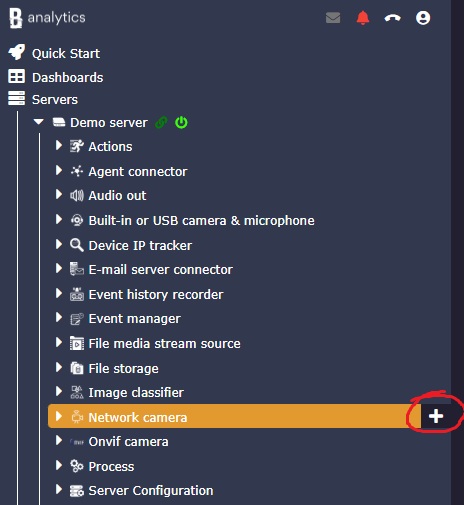
In the Banalytics server view, find the Network Camera section in the left panel and click the plus button to add a new instance.
Enter the stream URI and credentials
Fill in the URI schema, host and port, stream path, and camera credentials. Consult the camera documentation for the correct stream URL format.
Save and confirm the live stream
Save the configuration. The live stream appears in the preview pane once the connection is established.
Add tasks to the camera
Open the camera task panel to add capture video, watermark, motion detection, motion recording, continuous recording, or AI object classification.
URI schema and stream formats
The URI schema and stream format together determine how Banalytics connects to the camera and how video data is delivered over the network. Choose based on what your camera supports.
Supported URI schemas
RTSP is preferred for real-time video streaming. HTTP and HTTPS are available as fallbacks when RTSP is not supported or is blocked by a firewall.
Supported stream formats
/video.mjpeg or /stream1. If documentation is unavailable, search online for the camera model and "RTSP stream URL".
Configuration parameters
| Parameter | Required | Description | Default |
|---|---|---|---|
ID | Yes | A unique identifier automatically generated for this component instance. Read-only. | Auto |
Restart on failure | Yes | Controls how the component behaves when an error occurs:
| 10 sec |
MAC address | Optional | A unique identifier for the camera network interface. Find it in the camera web interface, through Network Device Discovery, or on the camera label. | None |
Title | Yes | A human-readable name for the camera, such as Garage Camera or Front Entrance. | None |
URI Schema | Yes | Protocol used to access the camera video stream and web interface.
| RTSP |
Stream format | Yes | The video encoding and delivery format used by the camera. Supported options include RTSP, H.264, H.265 / HEVC, MotionJPEG, MP4, and WEBM. | RTSP |
Host and Port | Yes | The camera IP address and port number. Find the IP address with Network Device Discovery or in the camera web interface. | None |
Path | Yes | The resource path for the camera video stream, such as /video.mjpeg or /stream1. | None |
Username and Password | Yes | Credentials for the camera web interface. Check the camera documentation, packaging, device label, or reset to factory defaults if credentials are unknown. | None |
What to do after adding the camera
Once the camera is connected, add tasks to start capturing video, recording, detecting motion, or classifying objects.