Event Manager
Event Manager lets operators configure event-driven automation rules from the business interface: choose triggers, time windows, filters, and actions without hard-coding the workflow inside a task.
Create automation rules from the business UI
The Event Manager is a core component of the Banalytics Video Management System. It triggers configured actions, such as recording, sending alerts, forwarding events, or playing audio, whenever predefined conditions are met.
You can create any number of rules for any component. One Event Manager can hold multiple rules grouped by operational meaning, for example recording rules, notification rules, scheduled mode switches, or alarm forwarding rules.
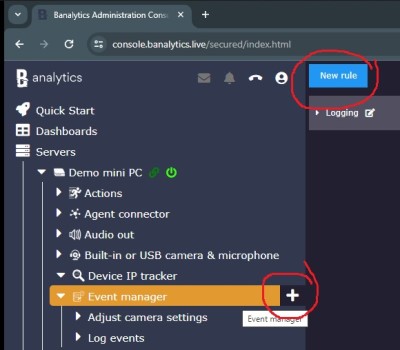
Open Event Manager
Click the plus button next to the Event Manager sub-menu under the Banalytics server.
Create a rule
Click New rule on the Event Manager page. A single manager can contain several rules, so create a new rule when the trigger, calendar, or action set has a separate meaning.
Configure trigger and actions
Select Event sources, Event source types, Event types, calendar settings, and one or more actions. Enable the rule only after the selected source and event type match your scenario.
Configuration parameters
| Parameter | Required | Description | Default |
|---|---|---|---|
ID | Yes | A unique, automatically generated identifier for this component instance. This value is not editable. | Auto |
Restart on failure | Yes | Restart mode after an error:
| 10 sec |
Title | Yes | Name of the rule group. Use a title that reflects the manager's purpose, for example Recording rules or Notification rules. | None |
Rules combine sources, event types, calendars, and actions
An event source is a component that generates events and can trigger actions. A source may be a particular component or task of the Banalytics server. For example, a rule for a camera may trigger an alarm sound when motion is detected; the motion detector is the event source.
An event source type groups sources, such as all ONVIF cameras or all motion detectors. This is useful when the same action should run for a whole class of components. Choosing a source type does not prevent you from creating a separate rule for one specific camera or task.
An event type groups events belonging to different components. Use it when the same action should run for a specific kind of event, such as motion detection, regardless of the component that produced it. You can also use event-specific fields or an expression when simple filters are not enough.
The calendar section can either limit when an event-driven rule is active or run a pure scheduled rule. Enable continuous periods for time windows, or leave them empty when the action should run at an exact time, for example at 06:00 and 18:00.
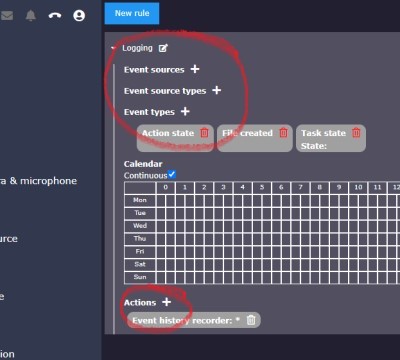
Event sources
Use individual sources when one camera, one detector, one sound sensor, or one ONVIF polling task needs its own reaction.
Event source types
Use source types when the same policy should apply to all components of a selected type.
Event types
Use event types and their fields to narrow a rule to the exact event kind and metadata values that matter.
Rule design and automation scenarios
Operator-managed automation
Use Event Manager when automation should be configured by operators through the business interface instead of hard-coded task logic. The component configuration itself only contains Title; rules, triggers, calendars, and action bindings are managed from the Event Manager UI.
Rule lifecycle
Each rule contains a trigger and a list of actions. A rule must be enabled before it can run. Rules are persisted and restored on startup, so they survive agent restarts without changing the Event Manager configuration.
Specific event sources
Use Event sources when a rule should react only to events produced by specific components, such as one camera, one motion detector, one sound detector, or one ONVIF event polling task.
Shared source types
Use Event source types when the same rule should react to all components of a selected type. Avoid mixing unrelated source types and event types in the same rule unless they describe the same scenario.
Event type filters
Use Event types to filter by event class and exposed event fields. Empty fields are ignored. Use Expression only when the simple field filters are not enough, because it is more powerful but easier to make too broad or too narrow.
Calendar modes
Combine calendar rules with event filters to make the rule active only during selected time windows, or create a pure scheduled rule with no event filters to run actions at fixed times.
Action execution
Attach only preconfigured actions that are safe to run automatically. Actions receive the triggering event in the execution context under the typed key AbstractEvent.class (read from Java with ctx.getVar(AbstractEvent.class)) and as the named SpEL variable event (referenced from template expressions as #event.sourceTitle, #event.dateTime, and so on). Actions with SpEL-templated fields such as SQL Action, Command Line Action, and MQTT Publish Action can interpolate event fields directly. Heavy actions attached to many high-frequency rules can grow the queue and increase reaction time.
Recommended profiles
Camera motion alarm
Select the specific motion detector or its event source, filter by the motion event type, optionally restrict the calendar to non-working hours, and attach notification, recording, or alarm actions.
ONVIF camera alarm forwarding
Use ONVIF camera events from the event polling task, filter by the ONVIF event category and metadata, then forward the event to Telegram, email, WebRTC consumers, or a recording action.
Scheduled monitoring mode switch
Create pure scheduled rules that execute task state changes or task actions at the required times. Keep these rules free of event filters so they run by schedule alone.
Multi-camera common policy
Use event source types or event types when all cameras should share one reaction. Create separate rules when individual cameras need different recipients, recording locations, or PTZ presets.
Troubleshooting rules
Keep a rule disabled while building it in the business interface. Add the event source first, then the event type/filter, then actions. Enable it only after checking that the selected source and event type actually match.
Rule examples from the UI
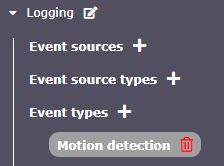
Motion detection on any camera
This configuration triggers an action upon motion detection on any camera configured for the Banalytics server.
Motion detection on a particular camera
This configuration triggers an action upon motion detection on one particular camera configured for the Banalytics server.
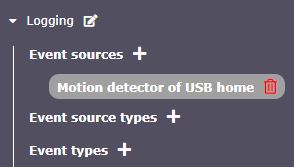
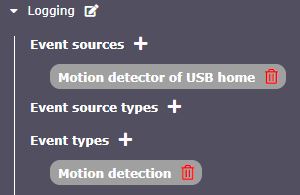
Specific USB home camera
This configuration triggers an alarm upon motion detection on the USB home camera. When an individual source is selected, specifying broad event source types in the same rule is unnecessary.
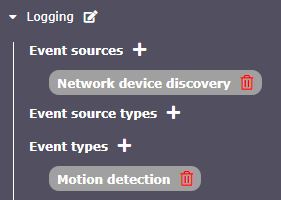
Mismatched source and type
This configuration will never trigger an action because the selected source and type do not correlate.
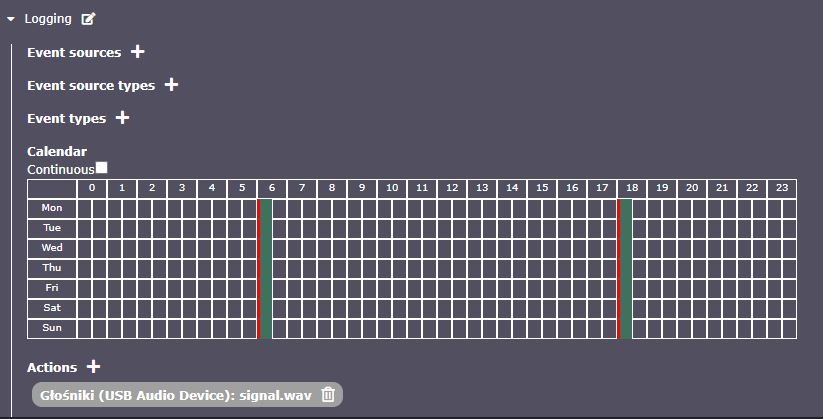
Pure scheduled audio action
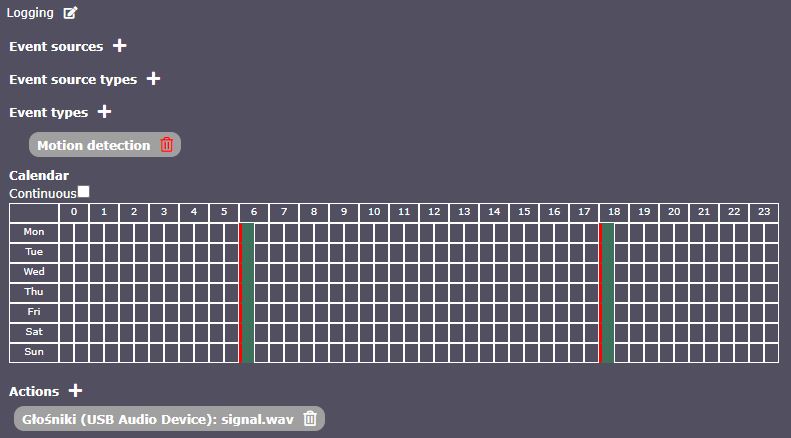
This configuration plays the signal.wav audio file every day at 06:00 and 18:00. The action runs without an event trigger because no event source is configured.
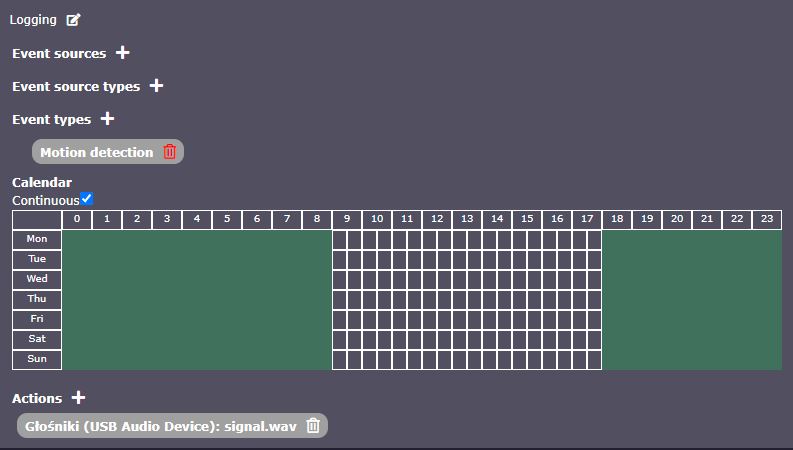
Office after-hours alarm
This configuration triggers an alarm upon motion detection on any camera from 19:00 to 09:00, which is useful for monitoring an office outside working hours.
Low-probability exact-time trigger
This configuration does not make operational sense because the alarm would trigger only if motion is detected exactly at 06:00 or 18:00.
Operational notes
Keep the manager running
Keep the component running before dependent tasks or actions are expected to use it.
Test rules before production
Validate configuration in a small test workflow before using it in production automation.
Protect powerful actions
Restrict access to settings and actions that control credentials, files, external commands, or lifecycle state.