File Storage
File Storage manages repository folders for recordings, snapshots, uploaded files, cleanup policies, backup moves, and browser-side file access.
Choose a repository for recordings and media
In Banalytics, file storage provides the repository where recorded video files, snapshots, and other media assets are saved. Motion-activated video recording, continuous recording, event snapshots, backups, and other tasks depend on it to persist media.
Although file storage often resides on the same machine as the Banalytics server, it can also point to remote or networked drives, which gives you flexibility when scaling storage or backing up data.
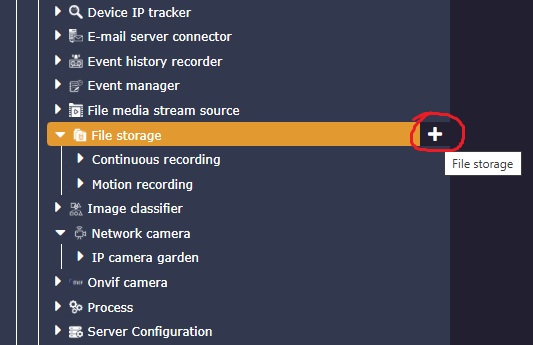
Open the File Storage sub-menu
In the Banalytics server view, find the File storage section in the left panel and click the plus button to add a new storage instance.
Select the target folder
Choose the folder where Banalytics should store recordings, snapshots, uploaded files, or other media assets. You can create separate folders for continuous recording, motion recording, camera groups, dates, or evidence workflows.
Set access and retention rules
Choose whether the storage is Read only, writable, or managed with delete permissions. Add cleanup limits only when Banalytics is allowed to delete or move old files.
Configuration parameters
| Parameter | Required | Description | Default |
|---|---|---|---|
ID | Yes | A unique, automatically generated identifier for this component instance. This value is not editable. | Auto |
Restart on failure | Yes | Restart mode after an error:
| 10 sec |
Title | Yes | Name of the file storage. A folder with the specified title will be created in the selected path, so choose a title that describes the type of content stored there, for example Motion recording or Continuous recording. | None |
File storage provider | Yes | Local file system reference. Currently this is the supported file storage provider. | None |
Path | Yes | Path to the target folder in the selected file storage provider. Right-click in the folder picker to add or delete folders.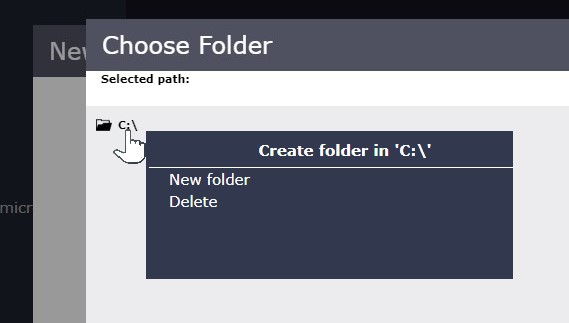 | None |
List order | Yes | File ordering strategy used by the browser UI. Use descending natural order when users usually need the newest recordings first. | Desc |
Access mode | Yes | Defines permitted operations:
| Read / Write |
Limit by | Optional | Defines the storage capacity limit. It is used for storages that allow deletion-based cleanup:
| None |
Clean up period | Yes | Frequency of the cleanup job. If the storage has not reached the configured capacity limit when the job runs, no files are removed or moved to backup storage. | None |
Limit level | Yes | Defines the folder hierarchy level where the capacity limit is applied:
| None |
Limit value | Yes | Storage capacity limit value in the unit selected by Limit by, for example megabytes, hours, or object count. | 1024 |
Enable upload | Yes | Allows users to upload files to the file storage from the device they use to access the Banalytics server. Available for writable storages.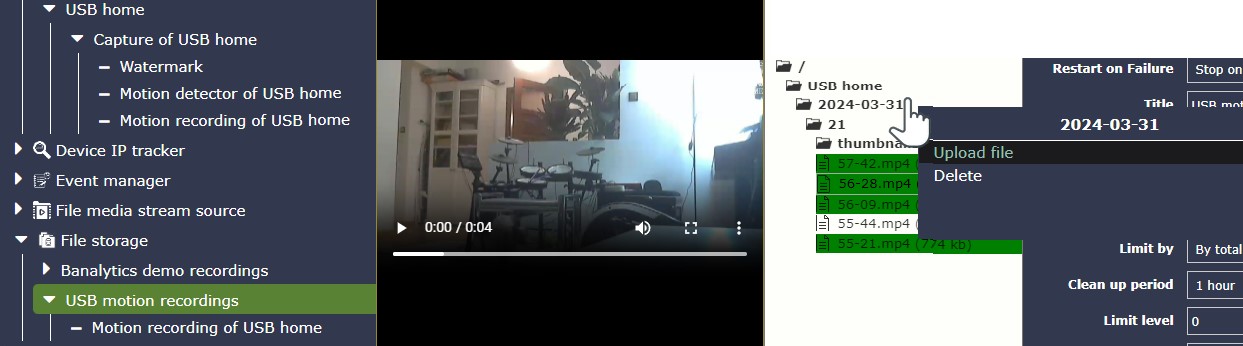 | None |
Enable moving | Yes | Allows files and folders inside the file storage to be reorganized from the browser UI. Users can drag and drop files or folders and then confirm the operation. | None |
Allow text editing | Yes | Allows in-place editing for text files in writable storage folders. Enable it only for folders that intentionally contain editable text files such as notes, configuration snippets, or simple metadata files. | None |
Backup files instead of removing | Optional | Reference to another file storage. When selected, the cleanup job moves recordings to that storage instead of deleting them. | None |
UI safe operations | Yes | When enabled, every move or delete operation requires confirmation, which helps prevent accidental file operations in the browser UI. | Enabled |
Enable UI file cache | Yes | Caches viewed files in the browser memory and can make repeated playback faster. This is useful for large video files when users move back and forth through the recordings list.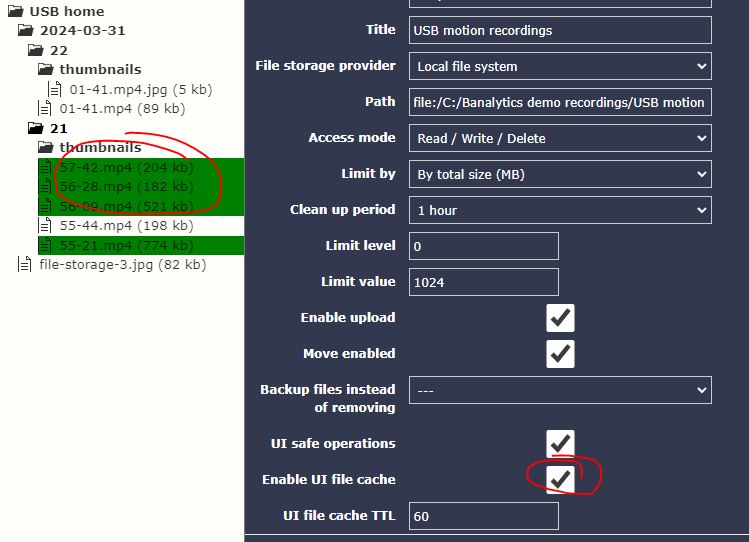 | None |
UI file cache TTL | Optional | Time-to-live for the UI file cache, in minutes. After this period cached files are removed from the browser memory. | None |
Configure storage for the right operational role
File Storage is a shared Core dependency for tasks, actions, and business interfaces that need durable file persistence. The most important design choice is whether the storage is only a readable library, a writable recording target, or a managed repository where Banalytics can clean up and move old files.
Reusable storage
Recording, snapshot, upload, archive, and media browsing workflows can all point to the same storage component or to separate purpose-specific folders.
Access control
The access mode defines whether users and tasks can only read files, create new files, or also delete and move data during cleanup.
Retention policy
Cleanup rules can limit storage by size, time, or object count, and can optionally move files into another storage instead of deleting them.
Storage roles and browser workflows
Storage role
Use File storage as a controlled storage area for recordings, snapshots, uploaded files, generated reports, and files shared through the remote UI. It wraps a lower-level File storage provider, restricts all operations to the configured Path, applies access rules, exposes browser options, and can automatically clean or archive old data.
Purpose-driven title
Set Title to the storage purpose, for example continuous recordings, motion events, snapshots, public downloads, or archive. If the title is empty, the UI title is derived from the destination folder name.
File storage provider
Set File storage provider to the provider that owns the physical or virtual location. The default Local file system is appropriate for local disks and mounted volumes.
Dedicated root folder
Set Path to the root folder for this storage. For camera workloads, separate continuous video, motion video, and image snapshots into different storages so cleanup policies can be tuned independently.
Ordering, access, and cleanup
UI ordering
Use List order to control how files are presented in the UI. Desc is convenient for recordings and snapshots because the newest file names usually appear first when names contain timestamps.
Access boundary
Use Read only for browsing and downloading without writes or deletes. Use Read / Write when tasks and uploads should create files. Use Read / Write / Delete when operators or cleanup jobs should delete or move old files out of the primary storage.
Cleanup limits
Use Limit by, Clean up period, Limit level, and Limit value only for storages that are allowed to delete data. No limits keeps accumulating files, By total size (MB) keeps the newest files within an approximate total size budget, By Time (Hours) removes files by age, and By objects count keeps the newest files by count.
Hierarchy level
Use Limit level when files are grouped into folders, for example by camera, date, or event type. Level 0 applies the limit to the whole storage. Higher levels apply cleanup separately inside each folder at that depth.
Backup instead of delete
Use Backup files instead of removing when cleanup should move files into another storage instead of simply deleting them. This is useful for hot/cold storage: keep recent files on fast local disk, then move older files to a larger archive location.
Browser operations
Upload, move, and text editing
Use Enable upload, Enable moving, and Allow text editing to control what the browser UI allows for writable storages. Keep them disabled for recording folders that should be managed only by tasks.
Create file from the right-click menu
For any storage whose access mode includes write (Read / Write or Read / Write / Delete), the browser right-click menu exposes a Create file action that creates an empty file under the right-clicked folder; missing parent directories are created automatically. The storage reports the resolved writeEnabled flag in its UI options so the menu item is hidden on read-only storages.
Safe destructive operations
Keep UI safe operations enabled for storages where users can delete files. It makes destructive UI operations require stronger confirmation. Disable it only for trusted maintenance workflows where speed is more important than accidental deletion protection.
Browser cache
Use Enable UI file cache and UI file cache TTL for mostly immutable files that are downloaded or previewed repeatedly, such as completed recordings, images, or static documents. Keep cache disabled when files can be replaced under the same path.
Recommended profiles
Continuous video recording
Read / Write / Delete, Desc, cleanup by size or time, separate folder per camera or date, uploads/moves/text editing disabled, and optional archive storage for old recordings.
Motion/event evidence
Read / Write / Delete, cleanup by time with retention matching incident review needs, optional backup storage, and UI safe operations enabled for manual deletion.
Snapshot gallery
Read / Write / Delete, cleanup by object count or time, Desc, browser cache enabled when snapshots are immutable, and hierarchy cleanup by camera/date when many cameras share one storage.
Read only archive
Read only, no cleanup, browser cache enabled with a longer TTL, and no upload/move/edit UI controls.
Operator upload/exchange folder
Read / Write or Read / Write / Delete, upload enabled, move enabled only when users need organization tools, text editing enabled only for trusted text files, and safe delete confirmation enabled.
Hot/cold retention
Primary storage uses Read / Write / Delete with a size or time limit and Backup files instead of removing pointing to a larger archive storage. The archive can use read-only access or its own slower cleanup policy.
Operational notes
Free space validation
Writable storages validate free space on start and before writing. If free space is below the safety threshold, the storage stops instead of continuing to accept files.
Cleanup start conditions
Cleanup starts only when Access mode is Read / Write / Delete, Limit by is not No limits, and Clean up period is not Not applicable.
Transactional writes
File-writing tasks use output transactions, so partially written files can be rolled back and completed files are committed into the configured destination.